Want to know which CMS a website is running? Paste its URL into a CMS detector and you will usually have the answer in under five seconds. If you would rather read the signals yourself, every platform leaves fingerprints in the page source, and most sites give themselves away in more than one place.
This guide covers why knowing which CMS a site uses matters (for competitive research, client work, buying decisions, or pure curiosity), the six methods that reliably identify any CMS, and the specific fingerprints each major platform leaves behind. Some of those fingerprints are obvious (a wp-content/ path screams WordPress); others take five seconds to find but get missed by every detector you'd try first.
What Is a CMS?
A content management system is software that separates the writing and publishing of content from the underlying code that displays it. Instead of editing HTML files and re-uploading them via FTP every time you want to change a paragraph, you log into an admin dashboard, edit the content in a familiar interface, and the CMS regenerates the public-facing page for you.
Every CMS has the same core jobs: store content in a database, render it through templates (themes), let multiple users edit with appropriate permissions, and add functionality via plugins or apps. Where they differ is in audience: WordPress targets generalist site owners and bloggers, Shopify targets ecommerce merchants, Squarespace targets designers who want a polished default, Wix targets beginners who want drag-and-drop, and Drupal/Joomla target developers who want fine-grained control. For a detailed look at whether Shopify qualifies as a CMS and how it compares to dedicated content management systems, see our dedicated breakdown.
Why It Matters What CMS a Site Uses
The CMS dictates almost everything about how a site behaves: hosting requirements, security model, theme and plugin ecosystem, ease of editing, and how hard it is to migrate to a different platform later. If you're researching a competitor, auditing a client site, evaluating an acquisition target, or just trying to figure out how a site you admire was built, knowing the CMS is the first useful piece of intelligence.
For agencies and freelancers, the CMS determines what kind of work you can quote on (a Webflow site won't take WordPress plugins). For buyers, it tells you what platform debt you're inheriting. For competitive research, it hints at the budget level, technical maturity, and the kind of growth tactics the team can execute. The five-second check pays off across all of those use cases.
CMS Market Share: What Powers the Web
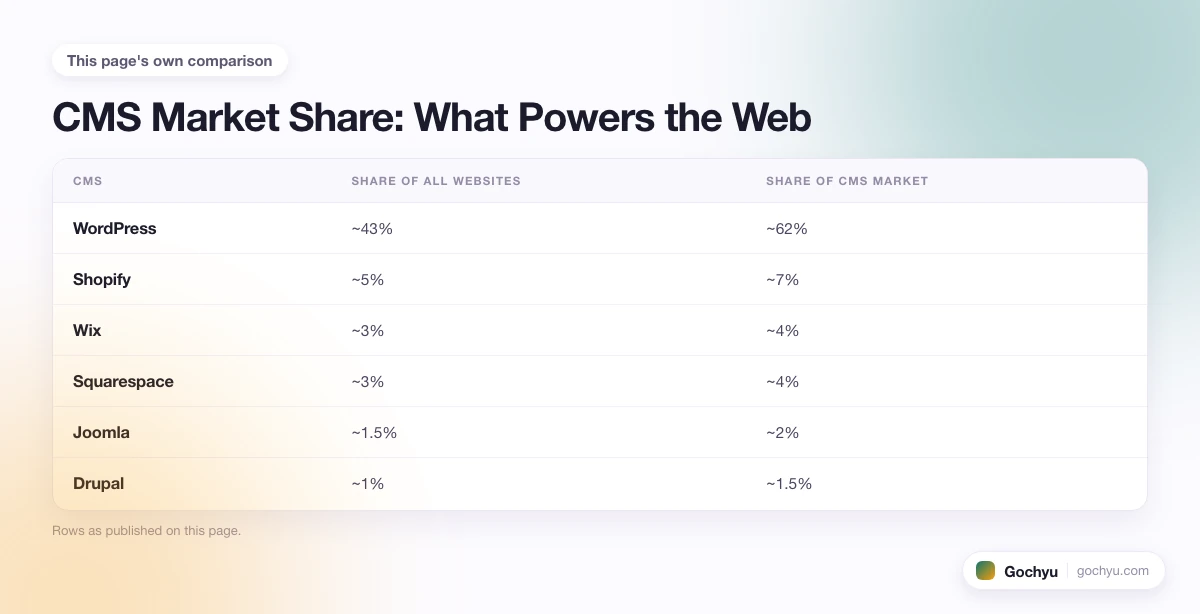
Here are approximate market share figures for the largest CMS platforms across all indexed websites (numbers shift quarter to quarter, but the rough order has been stable for several years):
| CMS | Share of all websites | Share of CMS market | Best at |
|---|---|---|---|
| WordPress | ~43% | ~62% | Generalist sites, blogs, lead-gen, content marketing |
| Shopify | ~5% | ~7% | Ecommerce stores of every size |
| Wix | ~3% | ~4% | Drag-and-drop beginner sites, small business |
| Squarespace | ~3% | ~4% | Designers, creatives, small ecommerce |
| Joomla | ~1.5% | ~2% | Community sites, multilingual portals |
| Drupal | ~1% | ~1.5% | Government, education, enterprise content |
| Other / custom / no CMS | ~43% | ~19% | Headless, static sites, custom-built, brochure HTML |
Roughly 57% of all sites use a known CMS. The other 43% are static HTML, hand-coded, headless (decoupled frontends pulling from an API), or run on a CMS too niche to register. That last group is where CMS detectors most often fail.
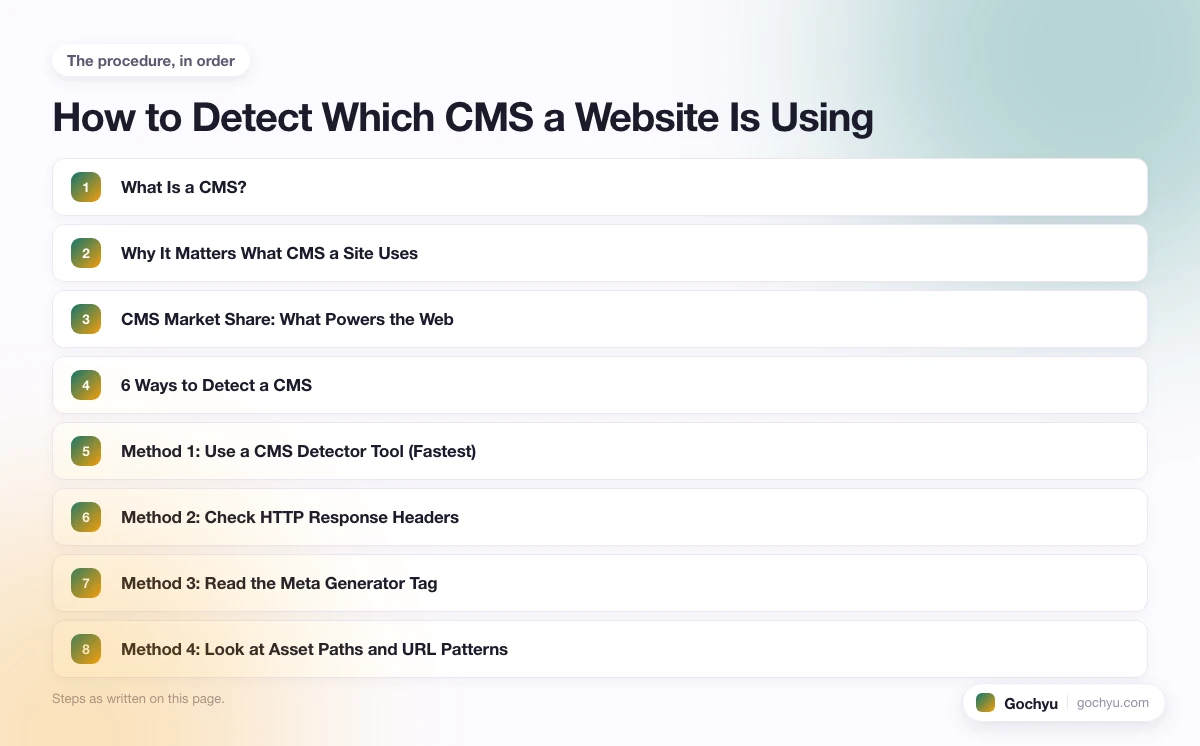
6 Ways to Detect a CMS
Method 1: Use a CMS Detector Tool (Fastest)
Paste any URL into our CMS Detector and you'll see the platform, version (when available), confirmed plugins/apps, and the theme or template in under five seconds. The tool runs all of the manual checks below in parallel: HTTP headers, meta generator tag, body class names, asset path patterns, JavaScript globals, /admin login routes, and platform-specific endpoints. If even one fingerprint hits, you get an answer.
This handles the vast majority of mainstream websites. The cases where it can't is when the site is headless, runs a niche CMS the tool doesn't fingerprint, or actively scrubs all the leaks with a security plugin. For those, the manual methods below get the answer.
Method 2: Check HTTP Response Headers
Open DevTools (F12), go to the Network tab, refresh the page, and click on the main HTML document. Look at the response headers. Several CMS platforms leak themselves directly:
X-Powered-By: WordPressorX-Powered-By: PHP/...: WordPress, Drupal, Joomla, or a custom PHP site.X-Shopify-Stage,X-ShopId,X-Sorting-Hat-ShopId: Shopify.Server: WixSiteorX-Wix-Request-Id: Wix.Server: Squarespace: Squarespace.X-Drupal-CacheorX-Generator: Drupal 10: Drupal.X-Content-Type-OptionsplusX-Logged-In: Joomla often emits these.
If you can't open DevTools, run curl -I https://example.com from the terminal. The headers come back the same way.
Method 3: Read the Meta Generator Tag
Right-click the page, choose View Page Source, and search for <meta name="generator">. This tag is set by the CMS automatically and explicitly names the platform and often the version:
<meta name="generator" content="WordPress 6.5.2"><meta name="generator" content="Drupal 10 (https://www.drupal.org)"><meta name="generator" content="Joomla! - Open Source Content Management"><meta name="generator" content="Shopify"><meta name="generator" content="Webflow">
Many security plugins remove this tag, so its absence doesn't prove anything. Its presence is the cleanest possible answer.
Method 4: Look at Asset Paths and URL Patterns
Every major CMS serves its CSS, JS, and images from a recognizable folder structure. View source and search for these strings:
/wp-content/,/wp-includes/,/wp-json/: WordPress.cdn.shopify.com,shopify.com/checkouts,/cdn/shop/files/: Shopify.static.parastorage.com,static.wixstatic.com: Wix.squarespace-cdn.com,static1.squarespace.com: Squarespace./sites/default/,/core/themes/,/themes/contrib/: Drupal./templates/,/media/system/,/components/com_: Joomla./assets/cache/wsa/,/img/cms/: PrestaShop.
This is the most reliable manual method because CSS and JS assets have to be served from somewhere, and even when the rest of the source is sanitized, the asset URLs almost always leak.
Method 5: Inspect JavaScript Globals
Open the browser console and try platform-specific globals. Each one returns either an object (CMS confirmed) or undefined (not this CMS):
ShopifyorShopify.theme: Shopify storefront.wporwpApiSettings: WordPress (especially block editor sites).WixorwixBiSession: Wix.Y.Squarespace: Squarespace 7.x sites.DrupalordrupalSettings: Drupal.Joomla: Joomla.
This is what most CMS detector Chrome extensions check first, because it's instant and unambiguous when it hits.
Method 6: Try the Default Admin URL
Every CMS has a default login URL. Add the path to the domain and see what loads (you don't need credentials, you just need to see whether the login form appears):
/wp-adminor/wp-login.php: WordPress./adminwith a Shopify-styled login form: Shopify./squarespaceor a Squarespace-style overlay: Squarespace (less reliable)./user/login: Drupal./administrator: Joomla./adminwith the PrestaShop logo: PrestaShop.
If the admin URL has been moved (a common WordPress security practice using a plugin like WPS Hide Login), this method fails. But it's the second-best confirmation when other clues are ambiguous.
Platform-Specific Fingerprints to Memorize
If you research dozens of sites a week, these are the single fastest tells for each major CMS, the ones you'll spot in two seconds of source-view scanning. Once you know which platform a site is on, the platform-specific detector posts cover what to do next.
WordPress
/wp-content/themes/{theme-name}/ in the source. That single path identifies both the platform and the theme. For the full set of WordPress detection methods (including child theme detection and bypassing security plugins that scrub wp-content paths), our guide on how to find what WordPress theme a site is using walks through the dedicated workflow. For the fastest one-click answer, paste the URL directly into our WordPress theme detector.
Shopify
cdn.shopify.com in the source, plus the Shopify.theme global in the JavaScript console. For full Shopify theme identification (including the Shopify.theme object output and headless-store fallbacks), see our walkthrough on how to detect what Shopify theme a store uses.
Wix
static.parastorage.com or static.wixstatic.com in image and CSS URLs. The wixBiSession JS global confirms it. Or paste the URL into our Wix detector for the template name in addition to the platform.
Squarespace
squarespace-cdn.com in source. Squarespace also exposes a JSON config object on most pages. Search source for Static.SQUARESPACE_CONTEXT. For Squarespace template identification specifically, the Squarespace detector reads the template fingerprint directly.
Joomla, Drupal, and PrestaShop
These three share more common patterns with each other than with the consumer-grade builders. Joomla almost always reveals itself through /components/com_ URLs in the source. Drupal through drupalSettings in JS or /sites/default/ in asset paths. PrestaShop through /img/cms/ and the prestashop JS global. For deeper identification, the dedicated Joomla detector, Drupal detector, and PrestaShop detector tools surface version numbers and confirmed extensions.
What to Do When the Detector Says "Unknown"
About 10% of sites return an unhelpful answer from a CMS detector. There are usually three reasons, and each has a specific workaround.
The site is headless
Many modern sites separate their CMS (often WordPress, Sanity, Contentful, or Strapi) from the frontend (often Next.js, Astro, or a static site generator). The user-facing pages have none of the usual fingerprints because the frontend was generated from API data, not rendered by the CMS itself. Check the /wp-json/ endpoint or /api/ paths in the source. If https://example.com/wp-json/ returns JSON, the backend is WordPress even if the frontend is static.
A security plugin is hiding the CMS
Plugins like Sucuri, Wordfence Hide WP, and WPS Hide Login scrub the obvious WordPress fingerprints (the meta generator, wp-content paths, the /wp-admin URL). They rarely cover everything. Check the RSS feed (/feed/ for WordPress), the REST API (/wp-json/), the body class names, and the response headers. At least one usually still leaks.
It's a niche or proprietary CMS
Some platforms (HubSpot CMS, Webflow, Sitecore, Adobe Experience Manager, custom builds) leave fingerprints CMS detectors don't always recognize. Look at the response headers (X-HS-Cache-Control = HubSpot, X-Powered-By: Express often = Webflow), the meta generator tag, and the asset URLs (Webflow assets live on uploads-ssl.webflow.com).
What to Do After You Identify the CMS
Knowing the platform is step one. The next move depends on what you want with the information.
Identify the theme or template
The CMS tells you the platform. The theme tells you the design and (often) the developer behind it. Our broader pillar guide on how to find what theme a website is using covers this layer for every platform, with platform-specific walkthroughs for WordPress and Shopify linked from there.
Identify plugins, apps, or extensions
Each CMS has its own ecosystem fingerprint. WordPress plugins leave /wp-content/plugins/{plugin-name}/ paths in source. Shopify apps inject specific JS files and meta tags. Wix and Squarespace are mostly closed (you can't easily see "apps" because their app stores are tightly bundled with the platform).
Find an alternative or migrate
If the CMS you've identified is the wrong fit for your project (too expensive, too limited, too complex), the platform name gives you a starting point for comparison shopping. Once you know what you're moving from, the migration path is searchable.
Common CMS Detection Mistakes
A few traps that trip up new researchers:
- Trusting the meta generator alone. It's easy to fake or remove. Confirm with at least one other method (asset paths or JS globals).
- Assuming the frontend equals the backend. A static Next.js site might be pulling content from WordPress, Sanity, or a headless commerce backend. The visible CMS isn't always the underlying CMS.
- Confusing Shopify Plus stores with custom platforms. Plus stores often have heavily customized checkouts and may use Hydrogen for the storefront, so the standard Shopify fingerprints are partially absent.
cdn.shopify.comin the asset paths almost always still appears. - Calling WooCommerce a separate CMS. WooCommerce is a WordPress plugin, not its own CMS. A WooCommerce store is a WordPress site with an ecommerce plugin layered on top.
If you want a broader rundown that also covers non-CMS platforms like static sites and custom JavaScript framework builds, see our companion guide on how to tell what platform a website is built on.
Conclusion: Detecting a CMS in Any Situation
For 90% of websites, the one-click CMS Detector returns the platform, version, and any obvious plugins or apps in seconds. For the headless, hidden, or niche 10%, the six manual methods covered here (HTTP headers, meta generator, asset paths, JS globals, admin URLs, and platform-specific fingerprints) cover every realistic case. Once you've identified the platform, the next step is usually identifying the theme or template, which our pillar guide on how to find what theme a website is using walks through for every major CMS.
* read the rest of the post and open up an offer