
Shop App is a free mobile shopping application built by Shopify (here's who owns the Shop App and the full ownership story) that lets customers track orders, discover products from Shopify merchants, and checkout faster using Shop Pay. As of 2024, it has more than 100 million registered buyers. For merchants, it is a free distribution channel that puts your products in front of active shoppers, with no additional setup required once Shop Pay is enabled on your store.
What Does the Shop App Do for Shoppers?
The Shop App gives buyers three core capabilities they cannot get from a standard browser session:
Faster Checkout with Shop Pay
Shop Pay stores a buyer's shipping address, payment method, and preferences securely. Returning customers check out in two taps rather than filling in a form. Shopify reports this speeds up checkout enough to increase conversion rates by up to 18% for repeat buyers, a meaningful lift that flows directly to merchant revenue.
Real-Time Order Tracking
Shop App aggregates all of a buyer's orders from any Shopify merchant in one place. They receive push notifications at every shipping milestone and can track their package on a live map. This dramatically reduces "where is my order?" support requests, one of the highest-volume customer service issues for e-commerce stores.
Personalized Product Discovery
The app surfaces products and brands based on a buyer's purchase history and browsing behaviour. For shoppers, this replaces hours of searching. For merchants, it is a free algorithmic channel that recommends your products to relevant buyers who have never visited your store.
What Does Shop App Do for Merchants?
Every Shopify merchant with Shop Pay enabled automatically has a presence on Shop App. The merchant-facing tools go further than passive visibility:
Increased Sales and Repeat Purchase Rates
The faster checkout and personalized recommendations built into Shop App are designed to increase both conversion rate and purchase frequency. Merchants with strong Shop App profiles benefit from Shopify's buyer data without managing their own ad campaigns.
Shop Store Profile
Merchants can claim and customize their Shop Store profile, a dedicated page in the app showing your products, brand story, and any active promotions. This is free and requires no additional Shopify subscription tier.
Performance Analytics
Shop App sales, impressions, and customer retention metrics are visible in your Shopify admin under the Shop channel. Merchants can track which products are being viewed, saved, or purchased through the app, and adjust product descriptions or imagery based on that data.
Shop Cash Campaigns
Shopify offers a paid advertising feature called Shop Cash Campaigns, where merchants can promote their products to buyers within the Shop App and only pay when a purchase is made. This is distinct from the free organic presence. It is an optional paid channel, not a requirement.
How Does Shop App Work Technically?
Shop Pay Integration
Shop App is built on Shop Pay, Shopify's accelerated checkout. When a buyer uses Shop Pay on any Shopify store, their information is saved to their Shop account. That data is then accessible across all participating stores, making repeat checkout frictionless. Payment data is encrypted and stored securely, not shared with individual merchants.
Order Aggregation
The app scans the buyer's email inbox (with permission) to find order confirmation emails from any retailer, not just Shopify stores. It then aggregates tracking information from carriers and displays it in a single feed. For Shopify orders, the tracking is native and more detailed than third-party parsing.
Shop Facts and Trust Signals
Each merchant's Shop App profile shows verified facts: years in business, number of orders fulfilled, and buyer reviews. These trust signals are automatically populated by Shopify based on your store's real data and cannot be manually edited, which makes them credible to buyers evaluating unfamiliar brands.
How Shop App Ranks and Surfaces Your Products
Shop App's discovery feed is not random. Shopify's algorithm prioritizes products based on several signals:
- Shop Pay adoption rate: Stores where more customers use Shop Pay appear more prominently in discovery, because Shopify has more buyer data to match those products to relevant audiences.
- Reviews and ratings: Products with positive reviews surface higher in the discovery feed. Merchants with a strong track record of fulfilled orders and satisfied customers benefit from this more than newer stores.
- Geographic proximity: For physical products, Shop App factors in a buyer's location to surface merchants that can ship faster or offer local pickup. This is particularly useful for regional businesses.
- Purchase recency and relevance: The algorithm learns from what a buyer has purchased before and surfaces complementary or similar products. A buyer who recently bought running shoes is more likely to see athletic accessories from other merchants.
The practical implication: enabling Shop Pay, maintaining good product reviews, and keeping your Shop Store profile up to date are the highest-leverage actions for improving your visibility in the Shop App feed.
Is Shop App Free for Merchants?
Yes. The Shop App is free to install and use. Any Shopify merchant with Shop Pay enabled automatically appears in the app. The only paid element is Shop Cash Campaigns, the optional promoted placement feature. There is no subscription, listing fee, or commission beyond Shopify's standard transaction fees that apply regardless of where the sale originates.
Can Merchants Opt Out of Shop App?
Yes. If you prefer not to have your store listed in Shop App's discovery feed, you can disable the Shop sales channel entirely from your Shopify admin:
- In your Shopify admin, go to Sales Channels.
- Click the Shop channel.
- Go to Settings and select Remove Sales Channel.
Removing the Shop sales channel means your products will no longer appear in the Shop App discovery feed, and your Shop Store profile will be deactivated. However, your Shopify store itself is completely unaffected. Customers can still find and purchase from your store directly. Shop Pay will also continue to work at checkout even after the Shop channel is removed, as Shop Pay is a payment method separate from the discovery channel.
Some merchants opt out because they sell exclusive or high-value products where discovery-driven impulse buying is not aligned with their brand strategy. Others simply prefer to control exactly where their products appear.
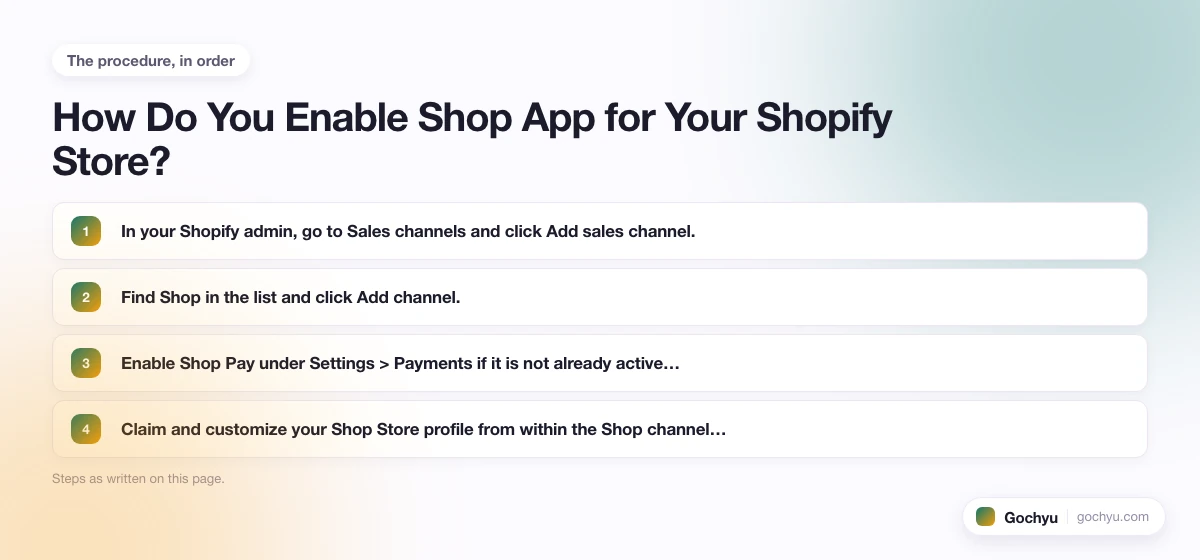
How Do You Enable Shop App for Your Shopify Store?
If you have a Shopify store, here is how to make sure you are live on Shop App:
- In your Shopify admin, go to Sales channels and click Add sales channel.
- Find Shop in the list and click Add channel.
- Enable Shop Pay under Settings > Payments if it is not already active. Shop Pay is available to Shopify merchants in the US, UK, Canada, Australia, and several other markets.
- Claim and customize your Shop Store profile from within the Shop channel settings. Add your brand description, logo, and featured products.
How to Optimize Your Store's Presence on Shop App
Getting listed on Shop App is automatic once Shop Pay is enabled, but the merchants who get the most out of it take a few extra steps to set up their profile properly and monitor performance. Here is how to get the most from the channel:
1. Set Up Your Shop Store Profile
Your Shop Store profile is what buyers see when they tap on your brand inside the app. A complete profile builds trust and increases the chance someone saves your store or returns to buy. To set it up:
- In your Shopify admin, go to Sales Channels and click Shop.
- Under the Customize tab, add a brand description (keep it to 2-3 sentences that clearly state what you sell and who you sell to).
- Upload a high-quality logo. The recommended size is at least 512x512 pixels. Blurry or cropped logos reduce buyer confidence.
- Add a cover image that reflects your brand aesthetic.
- Confirm your business location and contact details are accurate, as these feed into the "Shop Facts" trust signals buyers see on your profile.
2. Curate Product Collections for Discovery
Shop App does not show every product by default. You can control which products appear in the Shop discovery feed by managing your collections:
- In the Shop channel settings, go to the Products tab.
- Select which collections to feature in the app. Prioritize bestsellers and products with strong reviews, since those rank higher in the discovery algorithm.
- Keep product titles and descriptions accurate and specific. The algorithm uses them to match your products to buyer intent.
- Make sure all featured products have at least one high-quality image. Products without images are deprioritized in discovery.
3. Respond to Shop Messages
Buyers can contact merchants directly through the Shop App via Shop Messages, a built-in inbox similar to a customer support chat. Responding promptly matters for two reasons: it builds buyer confidence and Shopify factors response time into merchant credibility signals. To manage messages:
- Go to your Shopify admin and select Inbox from the left sidebar.
- Set up automated replies for common questions (shipping times, return policy) to reduce your response time.
- Enable push notifications on your phone via the Shopify mobile app so you are alerted to new messages quickly.
4. Run Shop Cash Campaigns for Paid Promotion
If you want to accelerate your visibility beyond the organic feed, Shop Cash Campaigns let you pay to promote your products to buyers who have not purchased from you before. The model is performance-based: you only pay when a buyer completes a purchase using Shop Cash. To get started:
- In your Shopify admin, go to Marketing and select Shop Cash Campaigns.
- Set a daily budget and choose which products to promote.
- Review performance after 7-14 days and adjust your product selection based on which items are converting.
Note that Shop Cash Campaigns work best for stores that already have strong product reviews and a complete profile. Running paid promotion without those foundations in place tends to produce weaker results.
5. Check Shop Analytics
Shopify provides dedicated reporting for Shop App performance inside your admin. To find it:
- Go to Analytics in your Shopify admin.
- Select Reports, then filter by the Shop sales channel.
- Review impressions, saves, and orders attributed to Shop App separately from your other channels.
- Pay attention to which products generate saves (a strong intent signal) versus which generate immediate purchases. Products with high saves but low purchases may need better images, clearer pricing, or stronger reviews.
What Shop App Means for Your Shopify Store
Shop App is Shopify's consumer-facing marketplace and checkout accelerator: a free channel for merchants and a unified shopping hub for buyers. With 100 million+ registered users, it represents meaningful organic reach for any Shopify merchant. Faster checkout, real-time tracking, and personalized discovery address the three biggest friction points in online retail. For merchants already on Shopify, enabling it requires no incremental effort beyond claiming your profile. And for merchants who prefer tighter control over their distribution, opting out is a single setting change that leaves everything else intact. If you're wondering who owns the Shop App and how it fits into Shopify's broader strategy, we cover the full ownership history and what it means for merchants.
* read the rest of the post and open up an offer