Yes, you can create a WordPress website offline by installing it on a local development environment (localhost) on your own computer. This means you get a fully working WordPress site on your machine, with no domain, no hosting costs, and no public access until you are ready to go live. Below is a step-by-step guide covering the best tools to do it.
Why Build a WordPress Website Offline?
Building a WordPress site locally before pushing it live makes sense for a number of reasons.
- No hosting costs during development. You do not need to pay for a domain or web hosting while the site is still being built. The site runs entirely on your own computer.
- Safe testing environment. You can install and test WordPress plugins and themes without any risk of breaking a live site. If something goes wrong, only your local copy is affected.
- Faster development. A local site loads almost instantly because there is no internet latency. That makes switching between theme settings, page builders, or plugin configurations much quicker.
- No audience sees your unfinished work. Visitors will never land on a half-built site, which protects your brand and avoids confusion for potential customers.
- Great for learning. If you are new to WordPress, a local install lets you experiment freely without worrying about real-world consequences.
Many professional developers and plugin or theme authors do all their work offline first and then push finished code to a staging or production server.
How to Install WordPress Locally: 4 Easy Methods
There are several tools that create a local server environment on Windows, Mac, or Linux. Each installs Apache (or Nginx), MySQL, and PHP for you, then lets you set up a WordPress site in minutes.
Option 1: Local by WP Engine (Recommended)
Local by WP Engine (formerly Local by Flywheel) is the most beginner-friendly option available. It handles all the technical setup for you and integrates cleanly with WP Engine and Flywheel hosting if you ever want to push to those platforms.
- Download Local from localwp.com and run the installer for your operating system (Windows, Mac, or Linux).
- Open Local and click + Create a new site.
- Enter a site name and click Continue.
- Choose Preferred for the environment and click Continue.
- Set a WordPress admin username and password, then click Add Site. Local will download WordPress and configure the database automatically.
- Once the setup finishes, click WP Admin to open your WordPress dashboard, or click Open Site to view the front end.
Your site will be accessible at a local URL like http://my-wordpress-site.local. You can start building immediately, just like you would on a live site.
Option 2: XAMPP
XAMPP is a free, open-source package that installs Apache, MariaDB (MySQL-compatible), PHP, and Perl. It is more technical than Local but gives you more control and works on Windows, Mac, and Linux.
- Download XAMPP from apachefriends.org and run the installer. Select Apache and MySQL as the minimum components.
- Open the XAMPP Control Panel and click Start next to Apache and MySQL.
- Download the latest WordPress zip from wordpress.org/download and extract it into the
htdocsfolder (e.g.,C:\xampp\htdocs\mysite). - Go to http://localhost/phpmyadmin. Create a new database (e.g.,
wordpress_local). - Visit http://localhost/mysite in your browser. The WordPress installer will launch. Enter your database name, set the username to
root, leave the password blank, and complete the setup. - Log in at http://localhost/mysite/wp-admin and start building.
Option 3: MAMP (Mac and Windows)
MAMP (My Apache, MySQL, PHP) is popular with Mac users and also has a Windows version. The free version is sufficient for most local WordPress development.
- Download MAMP from mamp.info and install it.
- Open MAMP and click Start Servers to launch Apache and MySQL.
- Go to http://localhost:8888/phpMyAdmin (Mac) or http://localhost/phpMyAdmin (Windows) and create a new database.
- Extract WordPress into the MAMP
htdocsfolder (found at/Applications/MAMP/htdocson Mac). - Navigate to http://localhost:8888/yourfolder and follow the WordPress installer using your database credentials.
Option 4: DevKinsta
DevKinsta is a free local development tool made by Kinsta, but you do not need a Kinsta hosting account to use it. It runs on Docker under the hood and offers a polished, visual interface similar to Local.
- Download DevKinsta from kinsta.com/devkinsta and install it (it will also install Docker if you do not have it).
- Click New WordPress Site, enter a site name, and choose your PHP version and WordPress settings.
- Click Create Site. DevKinsta sets up the database and gives you a working local site in a few minutes.
- Use the built-in database manager or WP Admin link to start working.
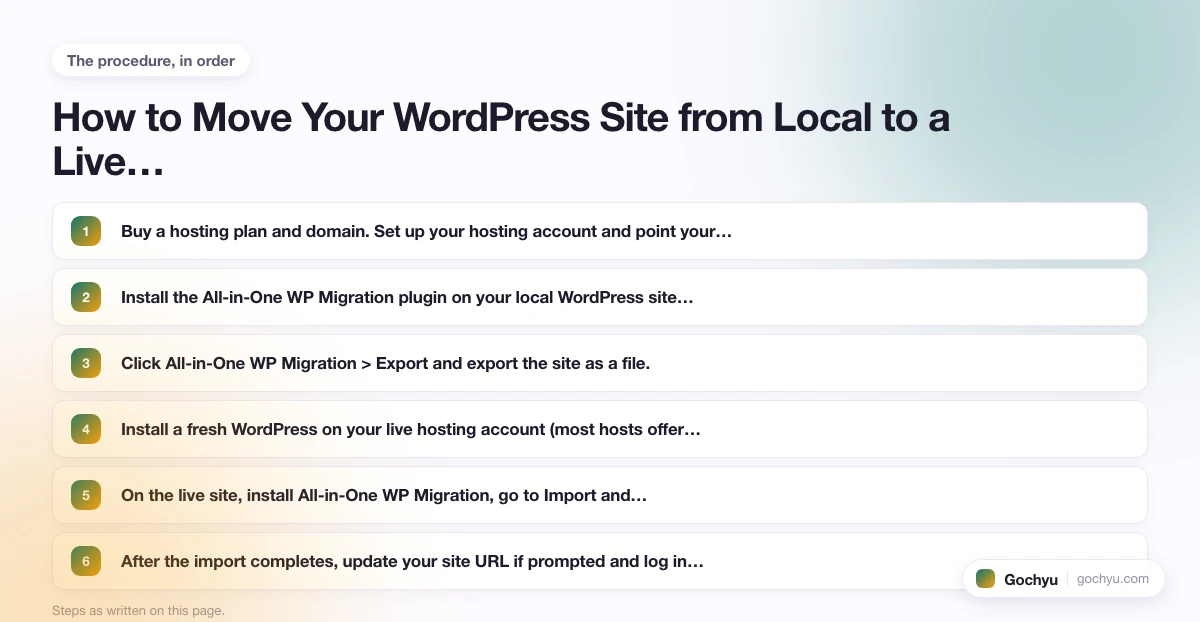
How to Move Your WordPress Site from Local to a Live Server
Once your offline site is ready, moving it to a live server involves a few steps. The easiest approach uses a migration plugin.
- Buy a hosting plan and domain. Set up your hosting account and point your domain to the server.
- Install the All-in-One WP Migration plugin on your local WordPress site. Go to Plugins, search for it, and activate it.
- Click All-in-One WP Migration > Export and export the site as a file.
- Install a fresh WordPress on your live hosting account (most hosts offer one-click installs).
- On the live site, install All-in-One WP Migration, go to Import and upload the file from step 3.
- After the import completes, update your site URL if prompted and log in with your original credentials.
You can also do this manually by exporting the database via phpMyAdmin, copying your files via FTP, and editing the wp-config.php file to point to the new database. The plugin method is much simpler for most users.
Can You Take a Live WordPress Site Offline?
This is a different question but comes up a lot in the same context. If you have a live WordPress site and want to take it offline temporarily, you have two main options.
- Maintenance mode plugins: Plugins like WP Maintenance Mode or Coming Soon Page and Maintenance Mode by SeedProd show a placeholder page to visitors while you work on the site. You still have full admin access.
- Coming soon mode: If the site is brand new and not yet ready to launch, a coming soon plugin lets you collect email subscribers while Google can still crawl the page, helping you build SEO signals before launch.
Neither of these actually takes your site offline in the technical sense. They just hide content from public visitors. Your site remains on the server and accessible to you as an admin.
Common Issues When Running WordPress Offline
Most local setups work well, but there are a few things to watch for.
- Plugins and themes need manual uploads. When offline, you cannot connect to the WordPress.org repository directly. You may need to download the zip file on your browser and then upload it manually via the WordPress dashboard or FTP.
- Port conflicts. If you have other software using port 80 (Apache) or port 3306 (MySQL), XAMPP or MAMP may fail to start. Change the default ports in the settings to resolve this.
- No SEO benefit during development. A local site is not indexed by search engines. If ranking speed matters, consider using a coming soon plugin on a live staging subdomain so Google can start crawling your domain earlier.
- Absolute URLs in the database. When you move a site from local to live, links and image paths stored in the database will still point to your local URL. The All-in-One WP Migration plugin handles this automatically, but manual migrations need a search-and-replace step.
- Email sending does not work locally. WordPress will not send emails from a localhost environment without an SMTP plugin or a mail-testing tool like Mailhog.
Which Local Tool Should You Use?
For most people, Local by WP Engine is the right choice. It handles everything automatically, works on all major operating systems, and gets you into a working WordPress admin in under five minutes. XAMPP and MAMP are better if you want low-level control over your server configuration. DevKinsta is worth considering if you plan to host on Kinsta eventually.
For tips on what plugins to install once your local site is up and running, see our guide to the top WordPress plugins. You may also want to read about how much a WordPress website costs so you know what to budget for when you move from local to live.
* read the rest of the post and open up an offer