The fastest way to find what WordPress plugins a site is using is to run the site URL through a WordPress detector that reports a plugin snapshot, then confirm and widen that list by searching the page source for wp-content/plugins/ paths. Between those two steps you can usually name the SEO plugin, the page builder, the forms tool, and the store engine in under a minute. WordPress is the easiest platform to fingerprint this way because almost every plugin loads its own CSS or JavaScript from a predictable folder, and many announce themselves outright in the HTML.
Most guides stop at "view the page source." The useful part is knowing which trace each plugin actually leaves, where to look when the obvious paths are stripped out, and how to read the exact version a site is running. This guide covers the detector shortcut, the page source, the REST API, a fingerprint table for the plugins you will meet most often, and the version trick that doubles as a security check. It also states plainly what you cannot see, because a good share of plugins never touch the front end at all.
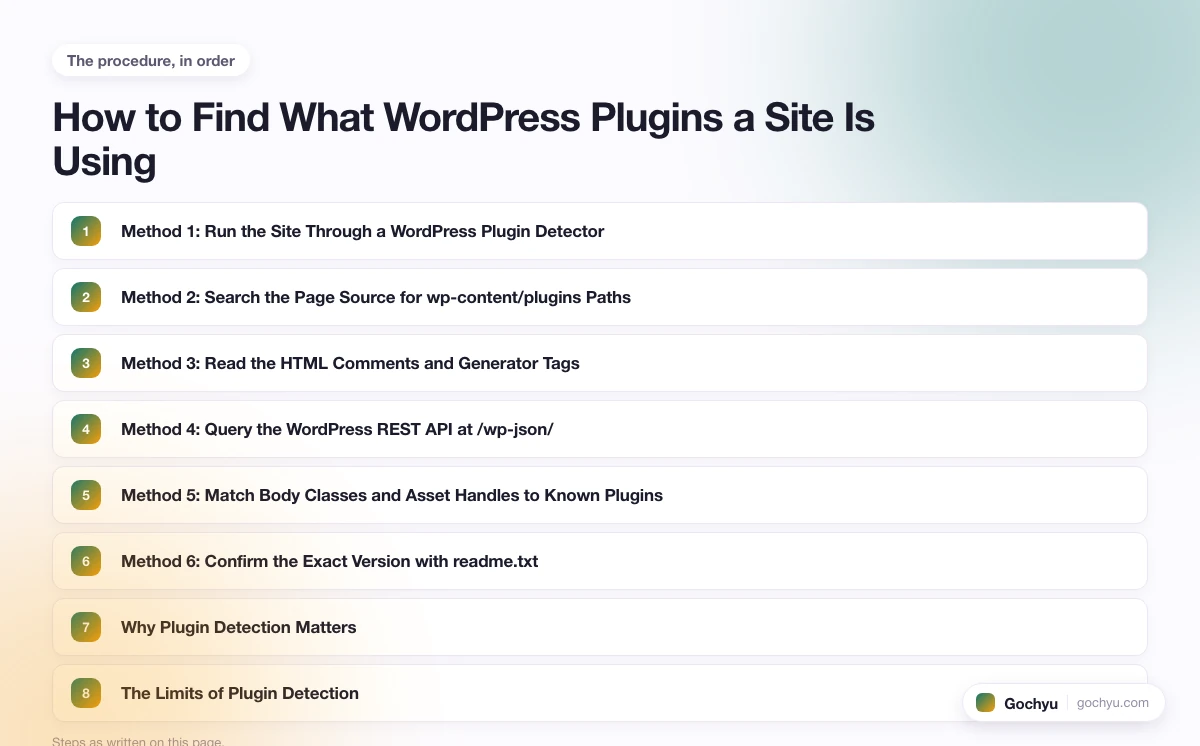
Method 1: Run the Site Through a WordPress Plugin Detector
Paste the site URL into our WordPress Theme Detector and, alongside the theme name and version, you get a snapshot of the plugins it can fingerprint from the public page. The tool reads the same storefront data you would inspect by hand, including asset paths and the identifying markers plugins print, and parses them in one pass. For most sites this names the headline plugins (the SEO tool, the page builder, the store engine) straight away.
Treat this as the starting point rather than the final word. A detector surfaces the plugins that leave a visible signature; it will not list background plugins that never render anything to a visitor. Use the manual methods below to confirm what the tool found, catch plugins it missed, and read exact version numbers. If you are not yet sure the site even runs WordPress, the detector confirms that first, since every method here assumes a WordPress install.
Method 2: Search the Page Source for wp-content/plugins Paths
Right-click the page and choose View Page Source (Ctrl+U on Windows, Cmd+Option+U on Mac), then press Ctrl+F and search for wp-content/plugins/. Active plugins load their stylesheets and scripts from a folder named after the plugin, so each hit points you at one:
https://example.com/wp-content/plugins/woocommerce/assets/css/woocommerce.css
https://example.com/wp-content/plugins/wordpress-seo/css/main.css
https://example.com/wp-content/plugins/elementor/assets/js/frontend.min.js
The folder name right after /plugins/ is the plugin slug. Some of those slugs match the public name exactly (woocommerce, elementor); others are less obvious (wordpress-seo is Yoast SEO, seo-by-rank-math is Rank Math). Collect every distinct slug you see, then look up the unfamiliar ones. This is the single most reliable manual method, because a plugin that puts anything on the page almost always loads an asset from its own folder.
Method 3: Read the HTML Comments and Generator Tags
Several of the most common plugins announce themselves in plain text in the page source. Search the source for <!-- comments and for the generator meta tag, and you will often find a signed line like these:
- Yoast SEO: a comment reading
This site is optimized with the Yoast SEO plugin, wrapped around the meta description block. - Rank Math: a comment reading
Search Engine Optimization by Rank Math. - WP Rocket: a comment near the end of the page noting the output was optimized by WP Rocket, plus
data-rocketattributes on deferred scripts. - WooCommerce: a
generatormeta tag readingWooCommercefollowed by its version number. - MonsterInsights and All in One SEO: both print a signed comment naming the plugin around their output.
These comments are the quickest confirmations you can get, because they name the plugin and sometimes the version without any guesswork. They are also the first thing a performance or security plugin strips, so their absence proves nothing on its own.
Method 4: Query the WordPress REST API at /wp-json/
This is the method most articles skip, and it is one of the best. Visit /wp-json/ on the site (for example https://example.com/wp-json/). If the response is JSON, the site is WordPress, and the namespaces array lists the API routes that active plugins have registered. Each namespace maps to a plugin:
wc/v3andwc/store: WooCommerce.yoast/v1: Yoast SEO.rankmath/v1: Rank Math.contact-form-7/v1: Contact Form 7.jetpack/v4: Jetpack.elementor/v1: Elementor.
The namespaces often reveal plugins that leave no asset on the page you happened to open, which is why this method catches things View Source misses. One honest limit: the route that lists every installed plugin (/wp-json/wp/v2/plugins) requires an administrator login and returns an authentication error to the public, so you read the plugins from the namespaces they expose, not from a full install list.
Method 5: Match Body Classes and Asset Handles to Known Plugins
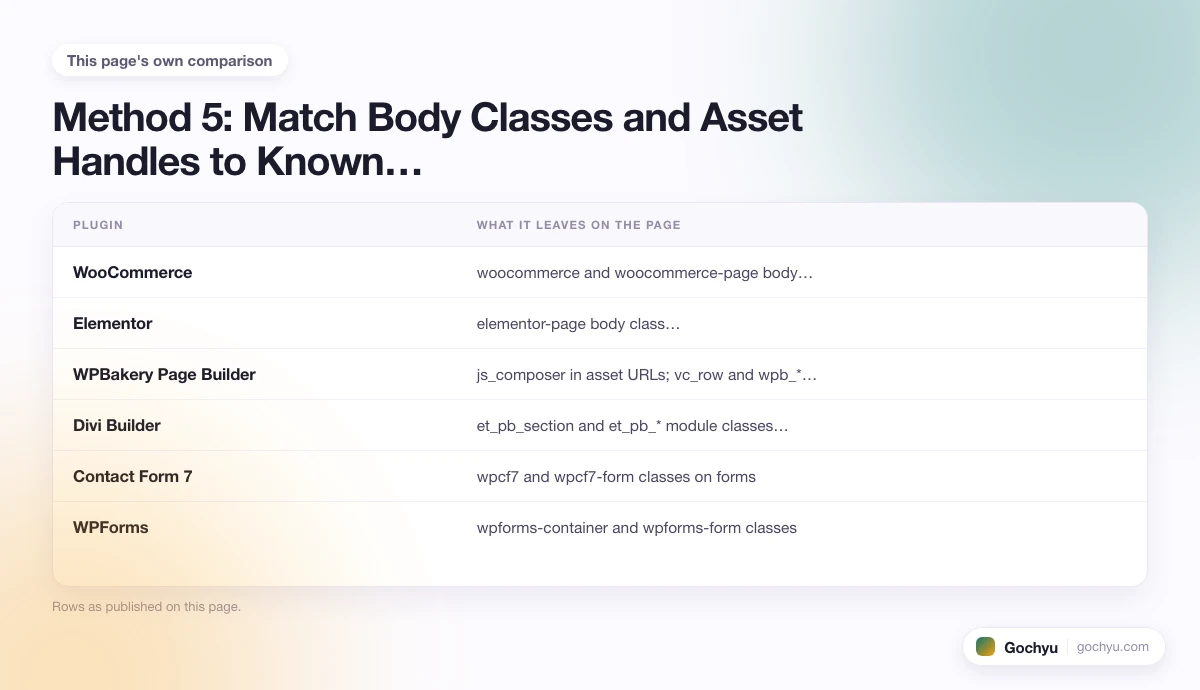
When a plugin's folder path is combined or renamed, its markup usually still gives it away. Search the source for class= on the <body> tag and on major sections, and match what you find against the fingerprints below.
| Plugin | What it leaves on the page |
|---|---|
| WooCommerce | woocommerce and woocommerce-page body classes; /cart/ and /checkout/ URLs; ?wc-ajax= requests |
| Elementor | elementor-page body class; elementor-section and elementor-widget-* wrappers |
| WPBakery Page Builder | js_composer in asset URLs; vc_row and wpb_* classes |
| Divi Builder | et_pb_section and et_pb_* module classes; /et-cache/ assets |
| Contact Form 7 | wpcf7 and wpcf7-form classes on forms |
| WPForms | wpforms-container and wpforms-form classes |
| Slider Revolution | rev_slider and rs-* classes; revslider in asset paths |
Body classes are hard to remove because stripping them breaks the plugin's own styling, so this method holds up even when the plugin folder path has been hidden. If you want a feel for which of these you will run into most often, our roundup of the top WordPress plugins covers the tools that power the majority of sites, which are exactly the ones whose fingerprints are worth memorizing.
Method 6: Confirm the Exact Version with readme.txt
Once you have a plugin slug, you can usually read its exact version. Most plugins from the WordPress.org directory ship a readme.txt file in their folder:
https://example.com/wp-content/plugins/{plugin-slug}/readme.txtOpen it and look for the Stable tag: line near the top, which names the released version. You can also read versions from the ?ver= query string appended to many plugin assets in the page source. This matters for two reasons. First, it tells you whether a design you admire is running the current release or an older one. Second, it is a basic security check: a plugin pinned to an old version is the most common way WordPress sites get compromised, because public vulnerability databases list exactly which versions are affected. If you are auditing your own site, an outdated plugin version here is a prompt to update.
Why Plugin Detection Matters
Identifying a site's plugins is rarely idle curiosity. The common reasons each change what you look for:
- Competitive research. Seeing a competitor's SEO plugin, page builder, and store setup tells you how they build and where they invest. It is the fastest read on another team's stack.
- Rebuilding a stack you like. If a site does something well (a slick product filter, a fast checkout), finding the plugin behind it lets you reproduce the result instead of guessing.
- Security and due diligence. Before buying or taking over a site, the plugin list and their versions show you the maintenance debt you would inherit.
- Troubleshooting. When a page misbehaves, spotting a known-heavy slider or builder plugin often explains a slow load or a layout conflict.
The Limits of Plugin Detection
No method here returns a full plugin list, and it is worth being clear about why. A large category of plugins never renders anything to a visitor: caching, security, backup, SMTP mail, anti-spam (Akismet is the classic example), and most optimization plugins do their work on the server and leave the public page untouched. You cannot see those from outside at all.
On top of that, performance plugins combine and minify CSS and JavaScript into single files, which erases the individual wp-content/plugins/ paths you would otherwise read. Security plugins can rename folders, scrub identifying comments, and hide the REST API. A CDN can rewrite asset URLs onto its own domain. When several of these are in play, you may confirm only two or three plugins on a site that actually runs twenty. A complete, authoritative list only comes from inside the WordPress admin, which means owner access.
Common Issues and How to Fix Them
No wp-content/plugins paths appear anywhere
Either the assets have been combined by a caching plugin, or a security plugin is scrubbing the paths. Fall back to the REST API at /wp-json/ (Method 4) and to body-class fingerprints (Method 5), both of which survive asset combining better than raw folder paths do.
I found the plugin slug but not its name
Plugin folder slugs do not always match the marketing name. Search the slug as a phrase and you will usually land on its WordPress.org directory page or its developer site. The readme.txt in the plugin folder also names the plugin in its first line.
The /wp-json/ URL returns a 404 or an error
If /wp-json/ returns nothing useful but wp-content/ paths do appear in the source, the site is WordPress with the REST API disabled or restricted, which some security setups do. Rely on the page source and fingerprint methods instead. If both the REST API and all wp-content/ paths are absent, the site may not be WordPress at all.
Conclusion: Finding Any Site's WordPress Plugins
For most sites, a detector plus a quick scan of the page source for wp-content/plugins/ paths names the plugins that matter in a minute or two. The REST API namespaces and the readme.txt version check are what separate a surface guess from a real read of the stack, and the fingerprint table turns combined assets from a dead end into a solvable puzzle. Just hold the honest limit in mind: the background plugins stay invisible, so treat any outside list as the plugins you can prove, not the full set. Plugins are only half the picture, so once you know them it is worth learning how to find what WordPress theme a site is using to see the full build.
* read the rest of the post and open up an offer