You can now describe the website you want in plain English and have an AI build it for you, pages, forms, text and all. Bluehost AI Builder is one of the tools doing this, and it is $0 to start, no credit card, so you can see a working site before you pay for anything.
Disclosure: This is a paid partnership with Bluehost. We earn a commission from purchases made through the links in this post.
This guide walks through the whole process, from your first prompt to a published page, and then gives an honest read on who Bluehost AI Builder suits and who should look elsewhere.
What Bluehost AI Builder Is
Bluehost AI Builder is an AI website and web app builder. Instead of picking a template and dragging blocks around, you tell it what you need in your own words and it generates the pages, forms and content for you. Bluehost hosts whatever it builds and offers 24/7 human support, and the product is currently in early access, so expect the odd rough edge and some changes to terms over time.
It is a different product from a store-first platform. It builds business sites, portfolios, landing pages, blogs, booking sites, customer portals, quote request forms, directories, internal tools and browser-based web apps. If your main goal is a full product catalog with a cart and checkout, Bluehost AI Store is the tool built for that, and you can check what a shop you admire runs on with our CMS detector first. If you are weighing the options, our roundup of the best AI website builders compares it against the main alternatives.
Step 1: Start Free and Describe Your Site
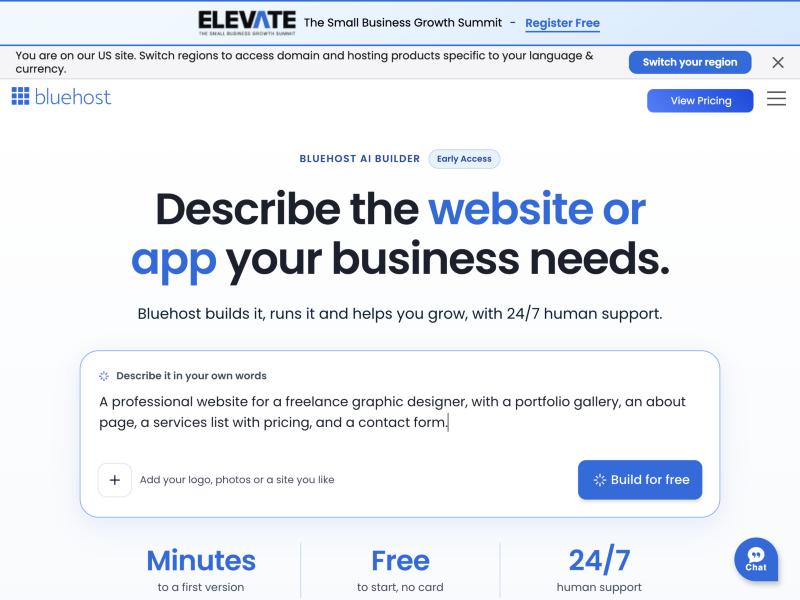
Open Bluehost AI Builder and start on the free plan. No card is required. The first thing it asks for is a description of what you want. Write it the way you would explain it to a person: what the site is for, who it serves, and what you want visitors to do. The more specific you are about your goal, the closer the first draft lands.
You can also upload a few things to steer the look: a logo, photos, a document, or a link to a site whose layout, color and tone you like. Uploads are PNG, JPG or WebP files up to 5 MB each. If you are using another site as a style reference and want to know what it was built with before you borrow its feel, our main Theme Detector tells you the platform and theme behind it in one check.
Step 2: Answer the AI's Questions
Once it has your description, the builder may ask a few clarifying questions, such as what you want visitors to do first or which visual style fits your brand. You can pick from suggested answers or type your own. These questions do not cost credits, so take your time here. Answering them well is the cheapest way to get a better first build, because it saves you from spending credits on edits later.
Step 3: Watch It Build and Review the Preview
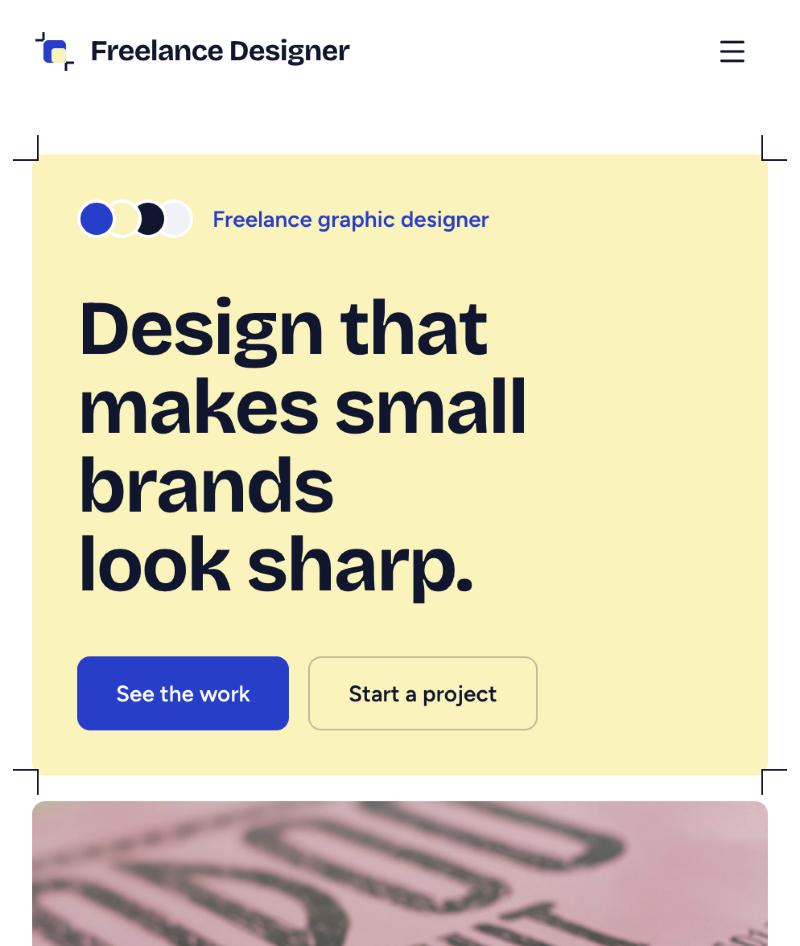
The builder then assembles the site in a live preview while you watch. It writes the pages, sets up forms, and fills in the copy, and it also handles the behind-the-scenes text that search engines read, including page titles, descriptions, headings and image alt text. Read through the result as a visitor would. Check that the main action you want, a booking, a contact form, a signup, is obvious and easy to reach.
Step 4: Refine by Chatting
Nothing the AI builds is final. You request changes by chatting with it, the same way you wrote the first prompt. Ask it to change a section, rewrite a headline, swap colors, or add a page, and it updates the draft. Your changes stay private until you publish again, so you can keep adjusting without anyone seeing a half-finished version.
Each message you send uses one credit. On the free plan you get 5 credits a day and up to 30 a month, so plan your edits in batches rather than tweaking one word at a time. Credits expire after 30 days, and if you run out your live site stays online, only new changes pause. Hosting itself never uses credits.
Step 5: Connect a Domain and Publish
When the site looks right, you publish it. On the free plan it goes live on a Bluehost subdomain, which is fine for testing or sharing a link, but comes with one catch worth knowing: free addresses are not indexed by search engines, so you will not rank on a free subdomain. To publish on your own domain, and to remove the Bluehost badge, you need a paid plan. You can connect a domain you already own or register a new one, billed separately.
Above the free start, Bluehost AI Builder has paid plans from $20/mo, which add custom domains, more monthly credits and on-demand top-ups. Confirm the current terms on Bluehost's site before you commit.
Step 6: Manage and Grow From the Admin Panel
After publishing, you run the site from an admin panel. That is where you handle form submissions, manage user accounts and roles, and keep editing by chatting with the AI. Team members can use the admin panel without their own Bluehost account, which helps if a colleague handles bookings or content while you own the plan.
Who Bluehost AI Builder Is Best For
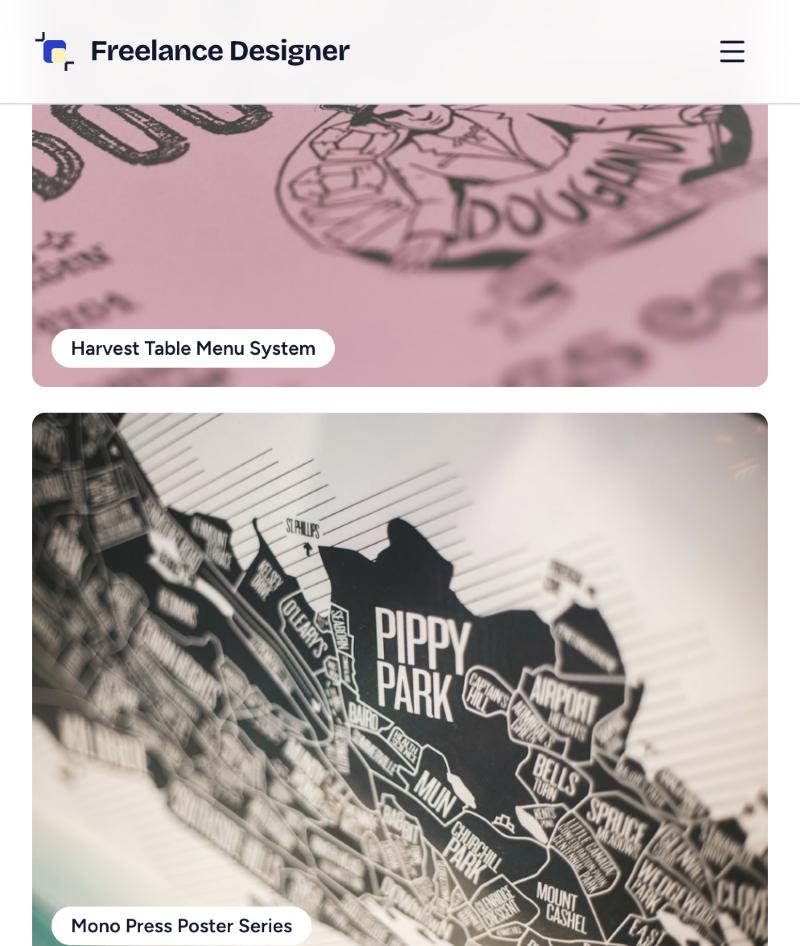
This is a good fit if you are a small business owner, freelancer or creator who wants a clean site fast and does not want to write code or wrestle with a page builder. Simple, structured sites are its sweet spot: a service business page, a portfolio, a booking site, a lead-capture landing page, a small blog, or a basic internal tool for your team.
It is a weaker fit if you need to sell products online with a full catalog and checkout, where Bluehost AI Store is the better match, or if you want pixel-level control over every element. It is also worth knowing that an AI-built site is only a starting point, not a finished brand. If you ever want to confirm whether a page was generated by AI, our AI website checker can give you a quick read.
Common Issues and How to Fix Them
The first build misses the mark: tighten your prompt rather than fixing the output piece by piece. Delete vague phrasing, name your audience and your main goal, and let it rebuild. A sharper prompt costs fewer credits than a dozen small edits.
You are running low on credits: on the free plan, batch your changes and send one clear message covering several edits instead of one per tweak. If you need more room, the paid plans lift the daily limit and add top-ups.
Your free site is not showing up on Google: that is expected. Free subdomain addresses are not indexed, so moving to a paid plan with your own domain is the step that makes a site eligible to rank.
The Bottom Line: Try It Before You Pay
Bluehost AI Builder takes the slowest part of starting a site, the blank page, and turns it into a conversation. You describe what you want, review what it builds, refine it by chatting, and publish, all without touching code. Because it is $0 to start, no credit card, the lowest-risk move is to try a prompt and see what it builds for your own idea before deciding whether a paid plan is worth it. And once your site is live, you can keep using Gochyu's Theme Detector to study the sites you admire and borrow what works.
* read the rest of the post and open up an offer